# High Definition Render Pipeline Wizard
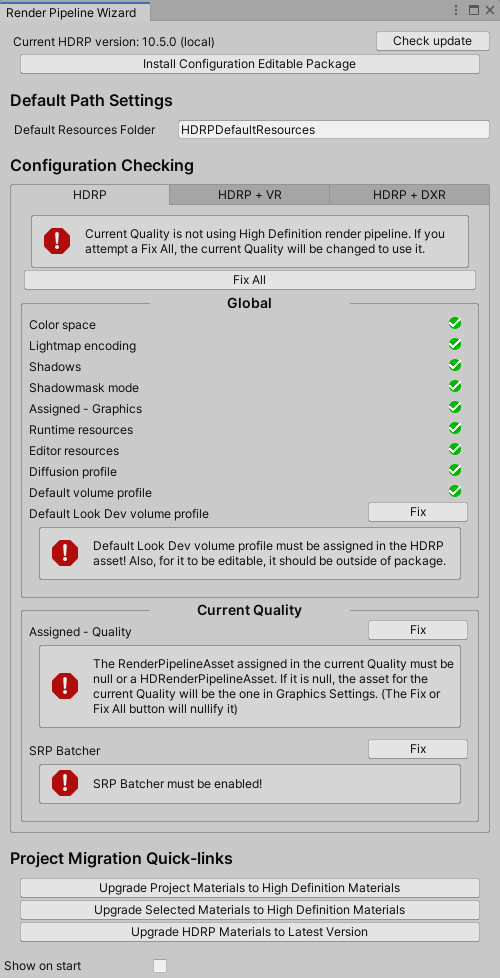
The High Definition Render Pipeline (HDRP) includes the **HD Render Pipeline Wizard** to help you configure your Unity Project so that it is compatible with HDRP.
To open the **Render Pipeline Wizard**, go to **Window > Render Pipeline** and select **HD Render Pipeline Wizard**.
## Packages
At the top of the window, there is an information text that shows you the currently installed version of HDRP. The **Check Update** button provides a shortcut to the HDRP package in the Package Manager window.
You also have a button allow you to creates a local instance of the [High Definition Render Pipeline Config package](HDRP-Config-Package.md) in the **LocalPackage** folder of your HDRP Project. If already installed, some information about its location are displayed below.
## Default Path Settings
| **Property** | **Description** |
| ---------------------------- | ------------------------------------------------------------ |
| **Default Resources Folder** | Set the folder name that the Render Pipeline Wizard uses when it loads or creates resources. |
## Configuration Checking
Your Unity Project must adhere to all the configuration tests in this section for HDRP to work correctly. If a test fails, a message explains the issue and you can click a button to fix it. This helps you quickly fix any major issues with your HDRP Project. The Render Pipeline Wizard can load or create any resources that are missing by placing new resources in the **Default Resources Folder**.
There are three tabs that you can use to set up your HDRP Project for different use cases.
* [HDRP](#HDRPTab): Use this tab to set up a default HDRP Project.
* [HDRP + VR](#VRTab): Use this tab to set up your HDRP Project and enable support for virtual reality.
* [HDRP + DXR](#DXRTab): Use this tab to set up your HDRP Project and enable support for ray tracing.
Also every configuration is separated in two scopes:
- **Global:** settings in Unity Editor or in the [HDRP Asset](HDRP-Asset.md) set in Graphics Settings.
- **Current Quality:** settings in the [HDRP Asset](HDRP-Asset.md) set in Quality Settings or, if null is set here, the one used in Global above.
### HDRP
This tab provides you with configuration options to help you make your Unity Project use HDRP.
**Global:**
| **Configuration Option** | **Description** |
| -------------------------------- | ------------------------------------------------------------ |
| **Color Space** | Checks to make sure **Color Space** is set to **Linear**. HDRP only supports **Linear Color Space** because it gives more physically accurate results than **Gamma**.
Press the **Fix** button to set the **Color Space** to **Linear**. |
| **Lightmap Encoding** | Checks to make sure **Lightmap Encoding** is set to **High Quality**, which is the only mode that HDRP supports.
Press the **Fix** button to make Unity encode lightmaps in **High Quality** mode. This fixes lightmaps for all platforms. |
| **Shadows** | Checks to make sure **Shadow Quality** is set to **All**. Unity hides this option when you install HDRP, and automatically sets it to **All**.
Press the **Fix** button to set **Shadow Quality** to **All**. |
| **Shadowmask Mode** | Checks to make sure **Shadowmask Mode** is set to **Distance Shadowmask** at the Project level. This allows you to change the **Shadowmask Mode** on a per-[Light](Light-Component.md) level.
Press the **Fix** button to set the **Shadowmask Mode** to **Distance Shadowmask**. |
| **Assigned - Graphics** | Checks to make sure you have assigned an [HDRP Asset](HDRP-Asset.md) to the **Graphics Settings** field (menu: **Edit** > **Project Settings** > **Graphics**).
Press the **Fix** button to open a pop-up that allows you to either assign an HDRP Asset or create and assign a new one. |
| **Runtime Resources** | Checks to make sure that your HDRP Asset references a [**Render Pipeline Resources**](HDRP-Asset.md) Asset.
Press the **Fix** button to reload the runtime resources for the HDRP Asset. |
| **Editor Resources** | Checks to make sure that your HDRP Asset references a [**Render Pipeline Editor Resources**](HDRP-Asset.md) Asset.
Press the **Fix** button to reload the runtime resources for the HDRP Asset. |
| **Diffusion Profile** | Checks to make sure that your HDRP Asset references a [**Diffusion Profile**](Diffusion-Profile.md) Asset.
Press the **Fix** button to reload the runtime resources for the HDRP Asset. |
| **Default Volume Profile** | Checks to make sure you have assigned a **Default Volume Profile Asset** in **Edit** > **Project Settings** > **HDRP Default Settings** that is not the one in the package.
It is only required to enable modification on the profile.
Press the **Fix** button to copy the one in package into the **Default Resource Folder** and use it instead. |
| **LookDev Volume Profile** | Checks to make sure you have assigned a **LookDev Volume Profile Asset** in **Edit** > **Project Settings** > **HDRP Default Settings** that is not the one in the package.
It is only required to use the LookDev and want to be able to modify the profile used in it.
Press the **Fix** button to copy the one in package into the **Default Resource Folder** and use it instead. |
**Current Quality:**
| **Configuration Option** | **Description** |
| ------------------------ | ------------------------------------------------------------ |
| **Assigned - Quality** | Checks to make sure you have assigned either an [HDRP Asset](HDRP-Asset.md) or null to the **Quality Settings** field corresponding to the current used quality (menu: **Edit** > **Project Settings** > **Quality**).
If the value is null, all **Current Quality** related configuration will be the one from the [HDRP Asset](HDRP-Asset.md) used in **Global**.
Press the **Fix** button to nullify the field. |
| **SRP Batcher** | Checks to make sure that SRP Batcher is enabled.
Press the **Fix** button to enable it in the used HDRP Asset. |
### HDRP + VR
This tab provides all of the configuration options from the [HDRP tab](#HDRPTab) as well as extra configuration options to help you set your HDRP Project up to support virtual reality. If you can not find an option in this section of the documentation, check the [HDRP tab](#HDRPTab) above. This is only supported on Windows OS. The extra configuration are all in the **Global** scope.
| **Configuration Option** | **Description** |
| -------------------------------- | ------------------------------------------------------------ |
| **Legacy VR System** | Checks to make sure **Virtual Reality Supported** is disabled. This was the legacy system that is being deprecated.
Press the **Fix** button to disable **Virtual Reality Supported**. |
| **XR Management Package** | Check to make sure the **XR Management Package** is installed.
Press the **Fix** button to install it. |
| **- Oculus Plugin** | This cannot be checked directly by the wizard. So it is basically info on procedure to check it.
You should install the plugin manually in **Edit** > **Project Settings** > **XR Plugin Manager** |
| **- Single-Pass Instancing** | This cannot be checked directly by the wizard. So it is basically info on procedure to check it.
You should check in **Edit** > **Project Settings** > **XR Plugin Manager** > **Oculus** that **Stereo Rendering Mode** use **Single-Pass Instancing** |
| **XR Legacy Helpers Package** | Check to make sure the **XR Legacy Helpers Package** is installed. It is require to handle inputs with the **TrackedPoseDriver** component.
Press the **Fix** button to install it. |
### HDRP + DXR
This tab provides all of the configuration options from the [HDRP tab](#HDRPTab) as well as extra configuration options to help you set your HDRP Project up to support ray tracing. If you can not find an option in this section of the documentation, check the [HDRP tab](#HDRPTab) above. This is only supported on Windows OS.
Note that every **Fix** will be deactivated if your Hardware or OS do not support DXR.
**Global:**
| **Configuration Option** | **Description** |
| -------------------------------- | ------------------------------------------------------------ |
| **Auto Graphics API** | Checks to make sure **Auto Graphics API** is disabled in your Player Settings for the current platform. DXR needs to use **Direct3D 12**.
Press the **Fix** button to disable **Auto Graphics API**. |
| **Direct3D 12** | Checks to make sure **Direct3D 12** is the first Graphic API set in Player Settings for the current plateform.
Press the **Fix** button to make Unity use **Direct3D 12**. |
| **Static Batching** | **Static Batching** is not supported while using DXR.
Press the **Fix** button to deactivate it. |
| **Architecture 64 bits** | DXR only supports 64 bit architecture.
Press the **Fix** button to change the target architecture to 64 bit. |
| **DXR Resources** | Checks to make sure that your HDRP Asset references an **HD Render Pipeline RayTracing Resources** Asset.
Press the **Fix** button to reload the raytracing resources for the HDRP Asset. |
| **Screen Space Shadow (HDRP Default Settings)** | Checks to make sure that your [Default Settings](Default-Settings-Window.md) have the **Screen Space Shadows** [Frame Setting](Frame-Settings.md) enabled by default for Cameras.
Press the **Fix** button to enable the **Screen Space Shadows** Frame Setting.
Note: This configuration option depends on **Screen Space Shadows (Asset)**. This means, before you fix this, you must fix **Screen Space Shadows (Asset)** first. |
| **Screen Space Reflection (HDRP Default Settings)** | Checks to make sure that your [Default Settings](Default-Settings-Window.md) have the **Screen Space Reflections** [Frame Setting](Frame-Settings.md) enabled by default for Cameras.
Press the **Fix** button to enable the **Screen Space Reflections** Frame Setting.
Note: This configuration option depends on **Screen Space Reflection (Asset)**. This means, before you fix this, you must fix **Screen Space Reflection (Asset)** first. |
| **Screen Space Reflection - Transparents (HDRP Default Settings)** | Checks to make sure that your [Default Settings](Default-Settings-Window.md) have the **Transparents** [Frame Setting](Frame-Settings.md) enabled by default for Cameras.
Press the **Fix** button to enable the **Screen Space Reflections** Frame Setting.
Note: This configuration option depends on **Screen Space Reflection - Transparents (Asset)**. This means, before you fix this, you must fix **Screen Space Reflection - Transparents (Asset)** first. |
| **Screen Space Global Illumination (HDRP Frame Settings)** | Checks to make sure that your [Default Settings](Default-Settings-Window.md) have the **Screen Space Global Illumination** [Frame Setting](Frame-Settings.md) enabled by default for Cameras.
Press the **Fix** button to enable the **Screen Space Global Illumination** Frame Setting.
Note: This configuration option depends on **Screen Space Global Illumination (Asset)**. This means, before you fix this, you must fix **Screen Space Global Illumination (Asset)** first. |
| **DXR Shader Config** | Checks to make sure that the **ShaderConfig.cs.hlsl**, in the **High Definition RP Config** package referenced in your Project, has **SHADEROPTIONS_RAYTRACING** set to **1**.
Press the **Fix** button to create a local copy of the **High Definition RP Config** package and, in the **ShaderConfig.cs.hlsl**, set **SHADEROPTIONS_RAYTRACING** to **1**. |
**Current Quality:**
| **Configuration Option** | **Description** |
| -------------------------------------------------- | ------------------------------------------------------------ |
| **DXR Activated** | Checks to make sure **DXR Activated** is enabled in the current [HDRP Asset](HDRP-Asset.md).
Press the **Fix** button to enable **DXR Activated**. |
| **Screen Space Shadows (Asset)** | Checks to make sure **Screen Space Shadows** is enabled in the current [HDRP Asset](HDRP-Asset.md).
Press the **Fix** button to enable **Screen Space Shadows**. |
| **Screen Space Reflection (Asset)** | Checks to make sure **Screen Space Reflection** is enabled in the current [HDRP Asset](HDRP-Asset.md).
Press the **Fix** button to enable **Screen Space Reflection**. |
| **Screen Space Reflection - Transparents (Asset)** | Checks to make sure **Transparents** is enabled in the current [HDRP Asset](HDRP-Asset.md).
Press the **Fix** button to enable **Transparents**. |
| **Screen Space Global Illumination (Asset)** | Checks to make sure **Screen Space Global Illumination** is enabled in the current [HDRP Asset](HDRP-Asset.md).
Press the **Fix** button to enable **Screen Space Global Illumination**. |
## Project Migration Quick-links
When upgrading a project from the built-in render pipeline to HDRP, you need to do upgrade your Materials. Use the following utility functions to help with the upgrade process:
- **Upgrade Project Materials to High Definition Materials**: Upgrades every Material in your Unity Project to HDRP Materials.
- **Upgrade Selected Materials to High Definition Materials**: Upgrades every Material currently selected to HDRP Materials.
- **Upgrade HDRP Materials to Latest Version:** Upgrades every Material in your Unity Project to the latest version.
The lighting will not match as HDRP use a different attenuation function than built-in and use correct math to handle lighting model. There is no function that can convert the look. Thus the lighting will require to be redone.